



End-to-end encryption is a wonderful thing, but it cannot protect a message from everything happening on the device after the message has been decrypted. Signal is responding to that problem with new screen protections aimed at operating-system AI assistants.
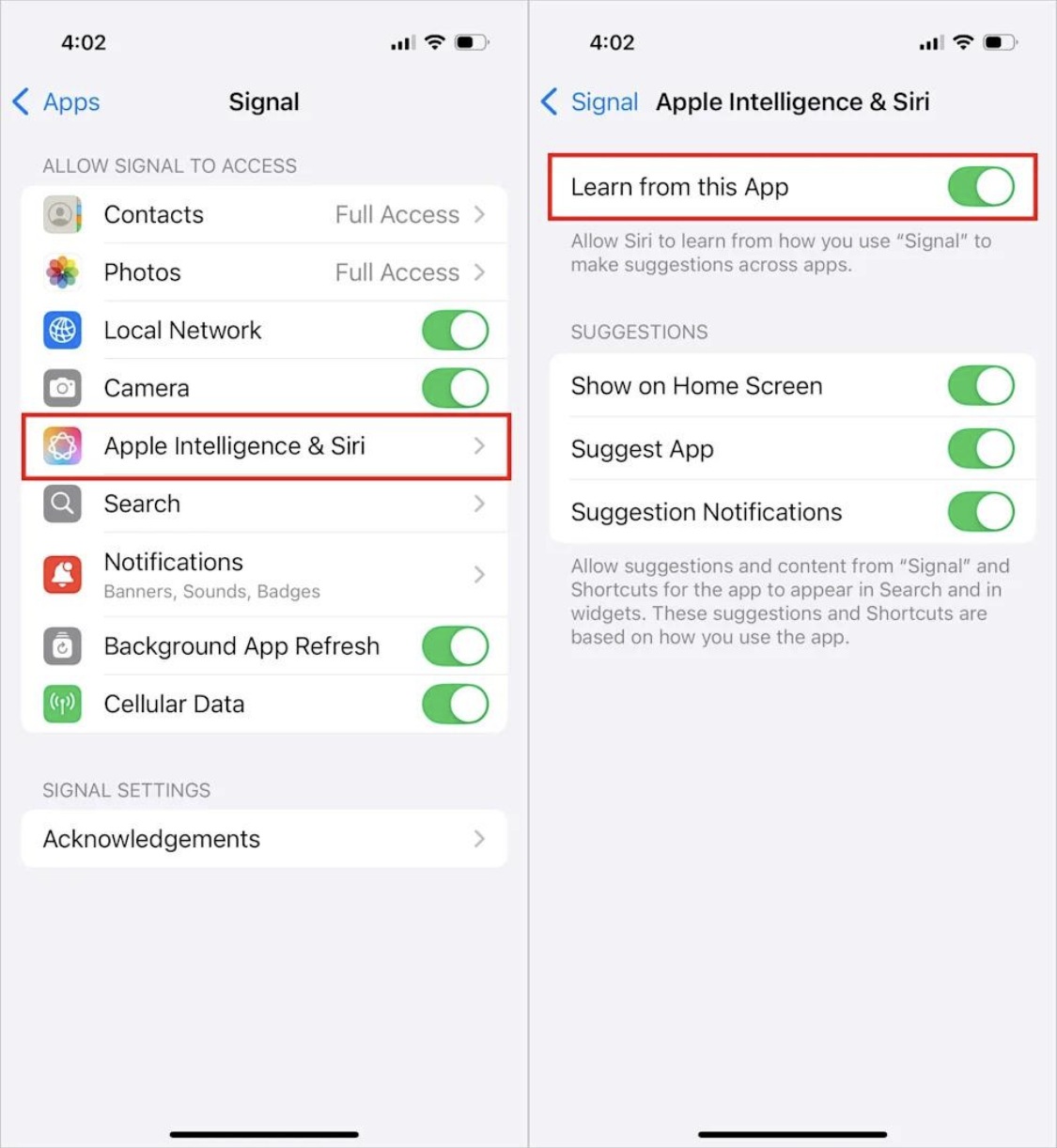
Start by updating Signal. Its support documentation identifies Android version 8.35.1 and iPhone version 8.37 on iOS 27 or later as supporting the new controls. On an iPhone, open Signal, enter Settings, select Privacy and locate Block Siri AI. Leave it enabled. If you need a screenshot, the temporary ten-minute exception is preferable to forgetting that you disabled protection altogether.
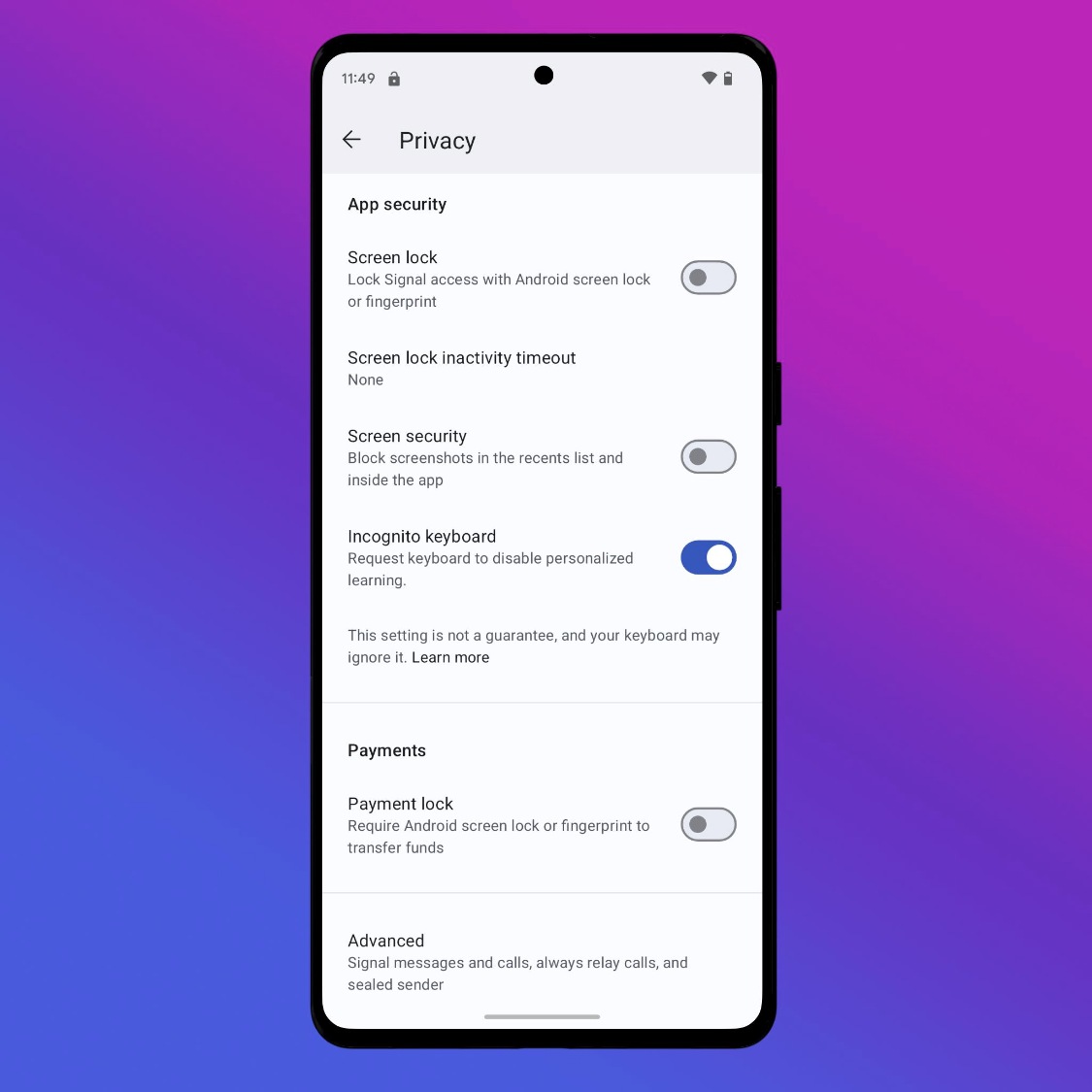
On Android, open Signal Settings, select Privacy, then App security and Screen security. Enable the setting if it is not already active. Signal can automatically activate it when it detects an assistant attempting to inspect the screen, although coverage varies across Android devices.
On a Mac running macOS 27, Signal recommends adding the application to the excluded apps in System Settings under Siri. The company says it cannot reliably implement the same screenshot restrictions on macOS. Windows users should also keep Signal’s existing screen security protection enabled where available.
These settings do not change the encryption protocol. They address a different problem: information visible on your screen potentially being copied into another system. They also cannot prevent someone from photographing the screen with another device or guarantee protection against compromised hardware. Privacy is a collection of defenses, not a single magic switch.