Effectual: Finally, a ToDo App to Sync with Windows 8 and Windows Phone

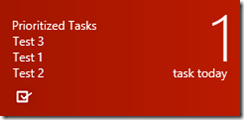
Anyone who visits Mobility Digest regularly, knows that I sort of have a thing for ToDo/Task apps. It’s not like I am super forgetful, although I am getting older. It’s just that I have a lot of stuff floating around in my head and my brain prioritizes based on need. So if I know I … Read more

Not Sure Those Monthly Report Are 100% Accurate

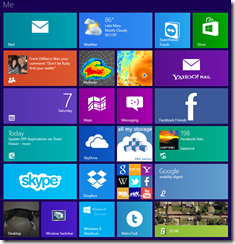
  I was tinkering with my Lumia 520 last week while I was checking analytics for my company’s Homestead.com website and was surprised to discover that my phone was recognized as a personal computer. Actually it thinks my 520 is a Windows 8 PC running IE10 with a 480 x 800 resolution. This was with … Read more

Zip Code Finder–Simply Marvelous!

This is not the prettiest app in the Windows 8 Store. But what it may lack in Metro design adherence, it makes up in functionality and features. Enter any or all of the following parameters; Zip Code, Address, City, State, County or Area Code, and Zip Code Finder will offer you search results at the top of the screen. Click on one of the results and the app will take you there on the map below in; Birds Eye, Aerial or Road view. Want to see more map, click the Map View icon to hide search results and get a larger view.

Read more

Warning! Spam has made its way into the Microsoft Store

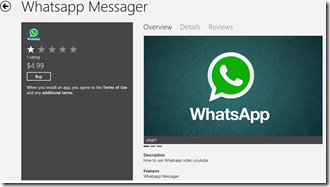
That’s right. This is your official “CRAP ALERT”. Once Microsoft announced that the Windows 8 Store had reached 100,000 apps, I knew it wouldn’t be long before the leeches came out from under their rocks and started preying on innocent victims. Check out some of these spectacular apps, all without trials of course.

First up, is Whatsapp Messager from publisher MAHN TIEN. For a mere $4.99 you can get some Lessions on how to use the popular WhatsApp app. Forgive me Mr. Simmons. Just typing as I read it.


image

Read more

Connected Standby be Damned: A (sort of) Workaround

 ConnectedStandby

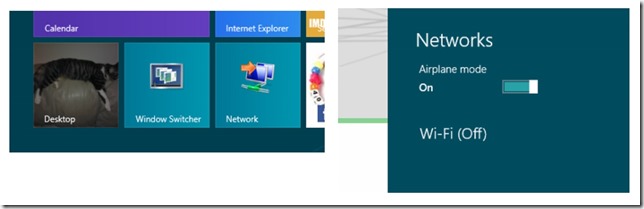
With the release of Windows 8/RT, low-energy processor devices got a new feature, Connected Standby (or AOAC–Always On/Always Connected). Basically this feature allows your device to be connected via WiFi, just like your Smartphone, whether your device screen is on or its sleeping. That’s how the Surface RT and a variety of other tablets/convertibles work today.

Connected Standby is a nice idea, assuming you use your new tablet the same way you use your phone, meaning everyday, all the time. But if you’re a casual tablet user like me, be prepared for picking up a dead device fairly often, unless you are willing to bypass another “smartphone like” feature, Instant on, and power your device off after each use.

I have been stuck in a vicious cycle the past couple weeks. I fully charge my Surface RT, put it back in my bag when I leave for work in the morning. And then two or three days later I pull it out of my bag to play a bit, only to find the battery is near or fully expired. As I refuse to be dongled to a power source, using a device that claims a 10 hour battery life, I instead put it back on the charger overnight and it goes back in the bag the next morning. So, unless I can plan 8 hours in advance to play with my Surface, I don’t get an opportunity to use it.

Read more